Claude Desktop setup guide
Gateway mode in three steps, and which Claude models each plan includes.
Skip the claude.ai login and switch inference to Gateway from the Developer menu. Chat, Cowork and Code then draw on your CodingPass plan in three steps.
If you only want the three-step quick reference, see the Claude Desktop setup guide. This post covers what the app does first, then walks through the setup.
Claude Desktop is Anthropic's official desktop app for macOS and Windows. The window has three tabs:
Claude Code also has a terminal CLI and IDE extensions with separate configs—this post covers only the desktop app.
By default, Claude Desktop requires a claude.ai login and routes inference and billing through your personal Anthropic subscription. Once Developer Mode is enabled, Developer → Configure Third-Party Inference lets you point inference at a Gateway without logging into claude.ai.
Anthropic's requirement for a Gateway is the Anthropic Messages API: POST /v1/messages must support streaming and tool use, while GET /v1/models is optional and auto-populates the model list if implemented. This menu entry started appearing in Chinese tutorials back in April, and Anthropic's docs refer to it as Claude Desktop on 3P.
Once connected to CodingPass, the model picker lists only Claude models:
| Model | Minimum plan |
|---|---|
| Claude Sonnet 5.5 | Go |
| Claude Haiku 5.5 | Go |
| Claude Opus 5.5 | Plus |
| Claude Fable 5.1 | Pro |
| Claude Fable 5.2 | Pro |
Download and install Claude Desktop from claude.com/download. Then open the Keys page in the CodingPass dashboard and create a key with the tool set to Claude Desktop—it starts with cp-live-.
On first launch, a sign-in screen appears. Skip signing in and turn on Developer Mode instead.
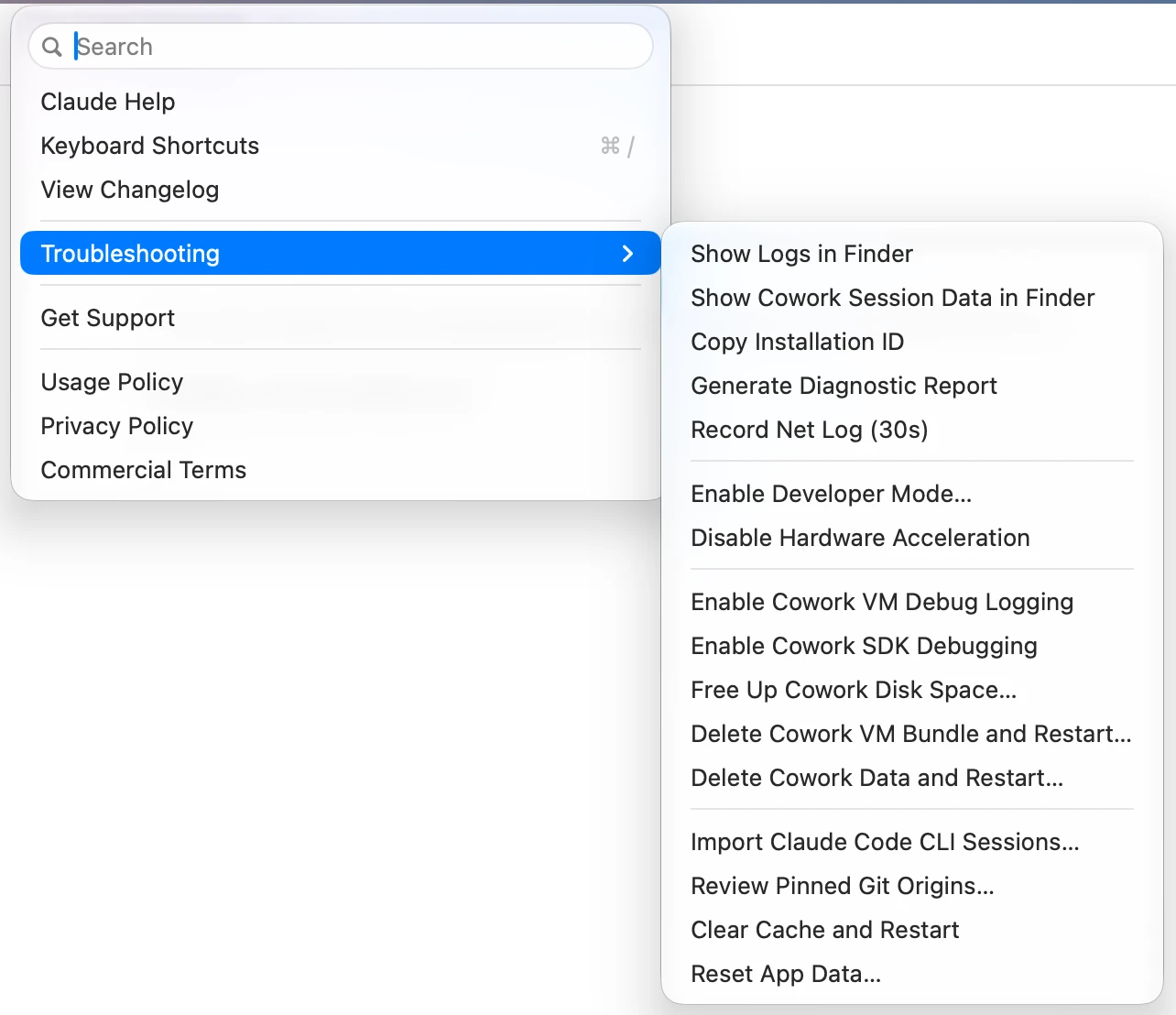
Click Enable in the confirmation dialog. The app does not restart; a Developer menu appears directly in the menu bar.
Open Developer → Configure Third-Party Inference… and select Connection in the left sidebar. The top dropdown already defaults to Gateway. Fill in the fields in order:
Static API key first. The API key and auth scheme fields only appear after you choose it.https://codingpass.ai, with no /v1 and no trailing slashcp-live-… key (it renders as dots)bearerLeave the remaining fields blank.
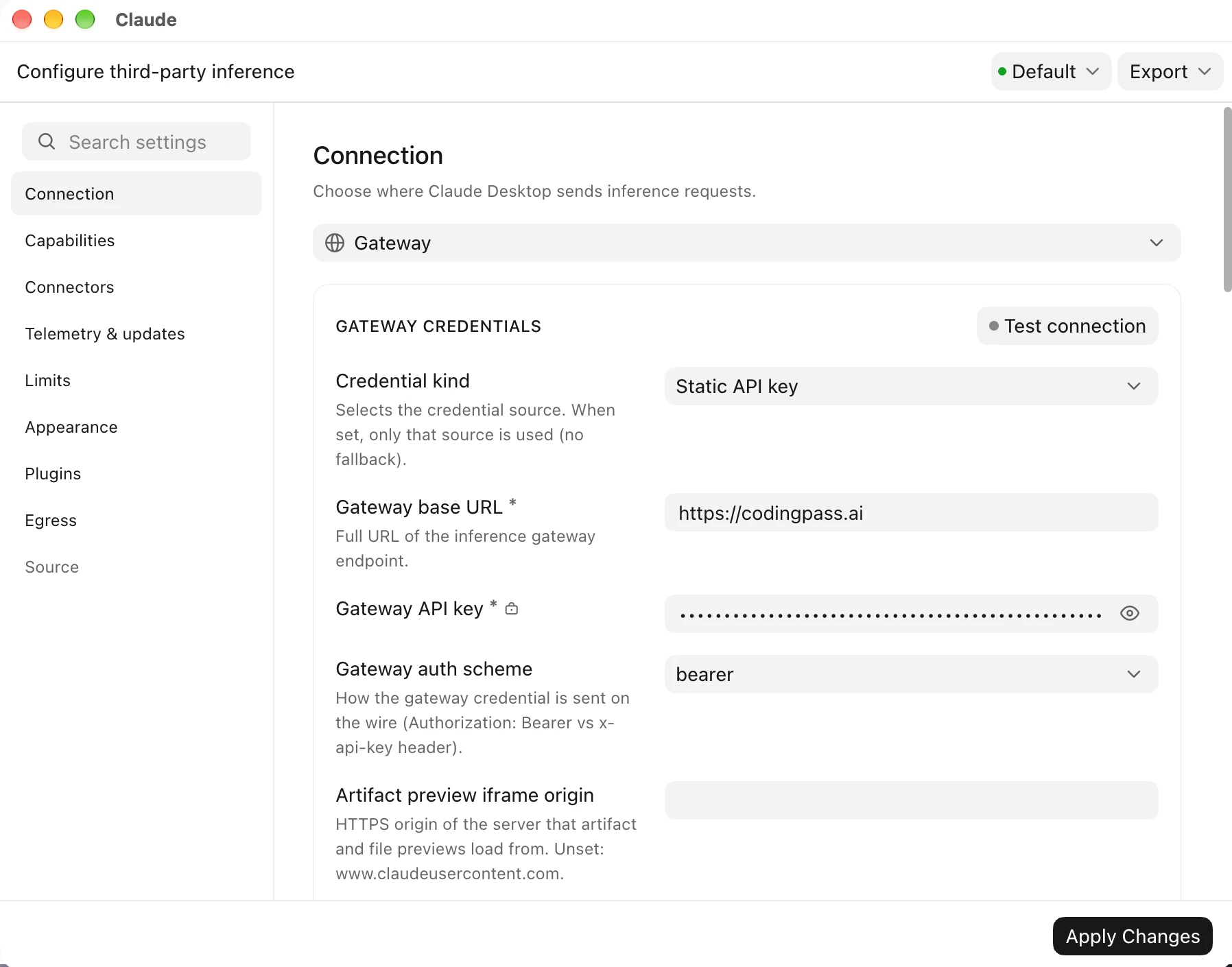
You can click Test connection in the top-right corner to verify reachability first. Clicking Apply Changes at the bottom right saves the settings and prompts you to restart. When you have unsaved edits, Discard Changes and Save Changes also appear beside it.
Settings are only read at startup. Click Apply Changes, then choose Relaunch now when Relaunch Claude? pops up.
Alternatively, click Save Changes, quit the app completely (Cmd + Q on macOS, or exit from the system tray on Windows—closing the window alone is not enough), and reopen it.
After relaunching, the sign-in screen is gone and the app opens straight to the main workspace. The bottom-left corner shows "username · Gateway", confirming inference is routed through the Gateway with no claude.ai login.
Click the model picker at the bottom right of the input box. If you see Sonnet 5.5 (selected by default), Opus 5.5, Fable 5.2, Haiku 5.5, and Fable 5.1—with Effort at the bottom—the setup worked.
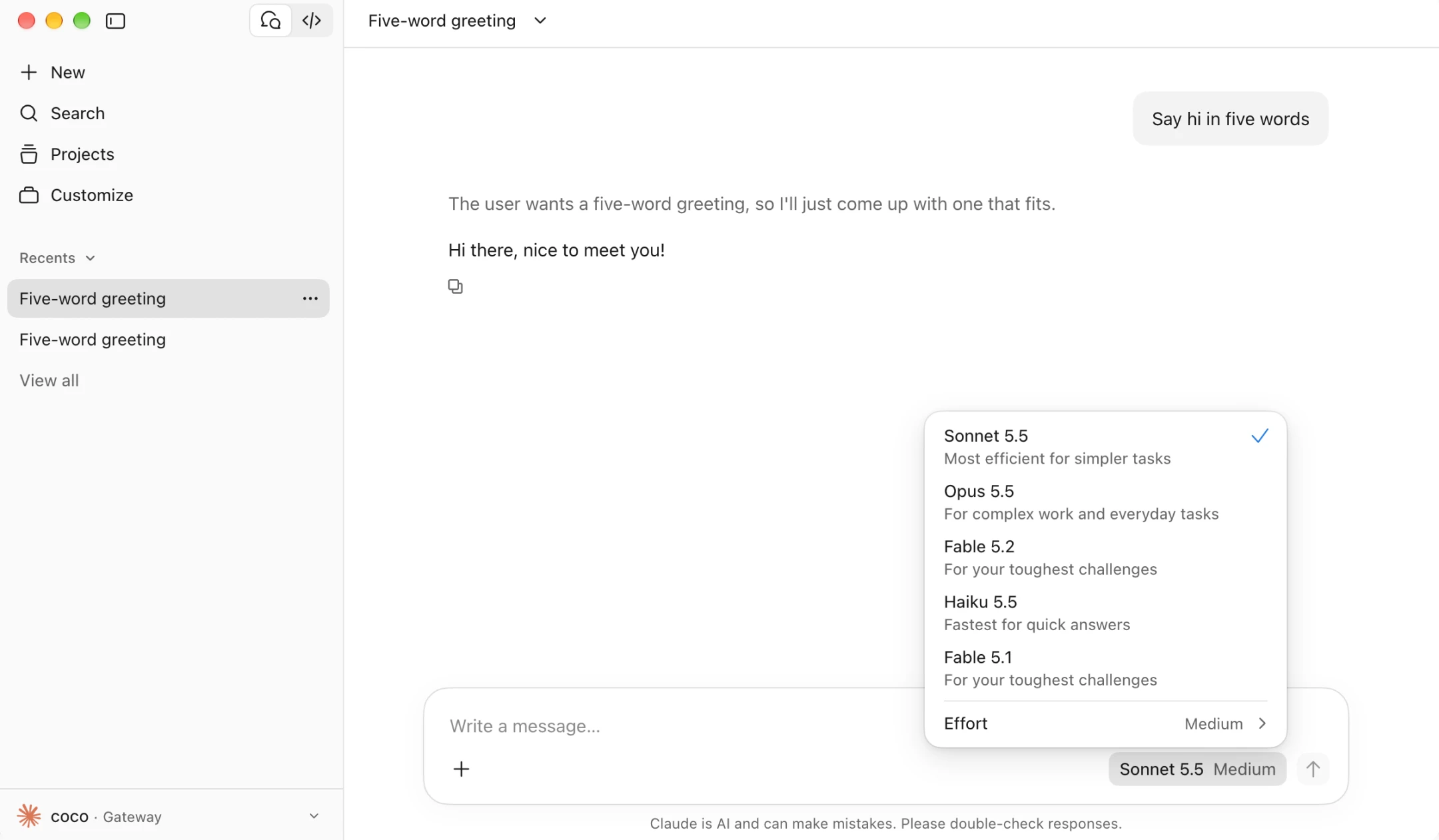
Send Say hi in five words with Sonnet 5.5. If it replies normally, you are all set. Only Claude models appear in the picker; GPT, DeepSeek, and other providers will not show up.
Turn on Gateway mode, paste one key and get Sonnet 5.5 from